.png)
Send your customers shipping notifications
How to Turn On Email Shipping Notifications for Your Customers
Shippiz can automatically email your customers when their shipment status changes, so you don't have to send those updates yourself. This article covers how to turn on email notifications and choose which events trigger them.
Watch it in action
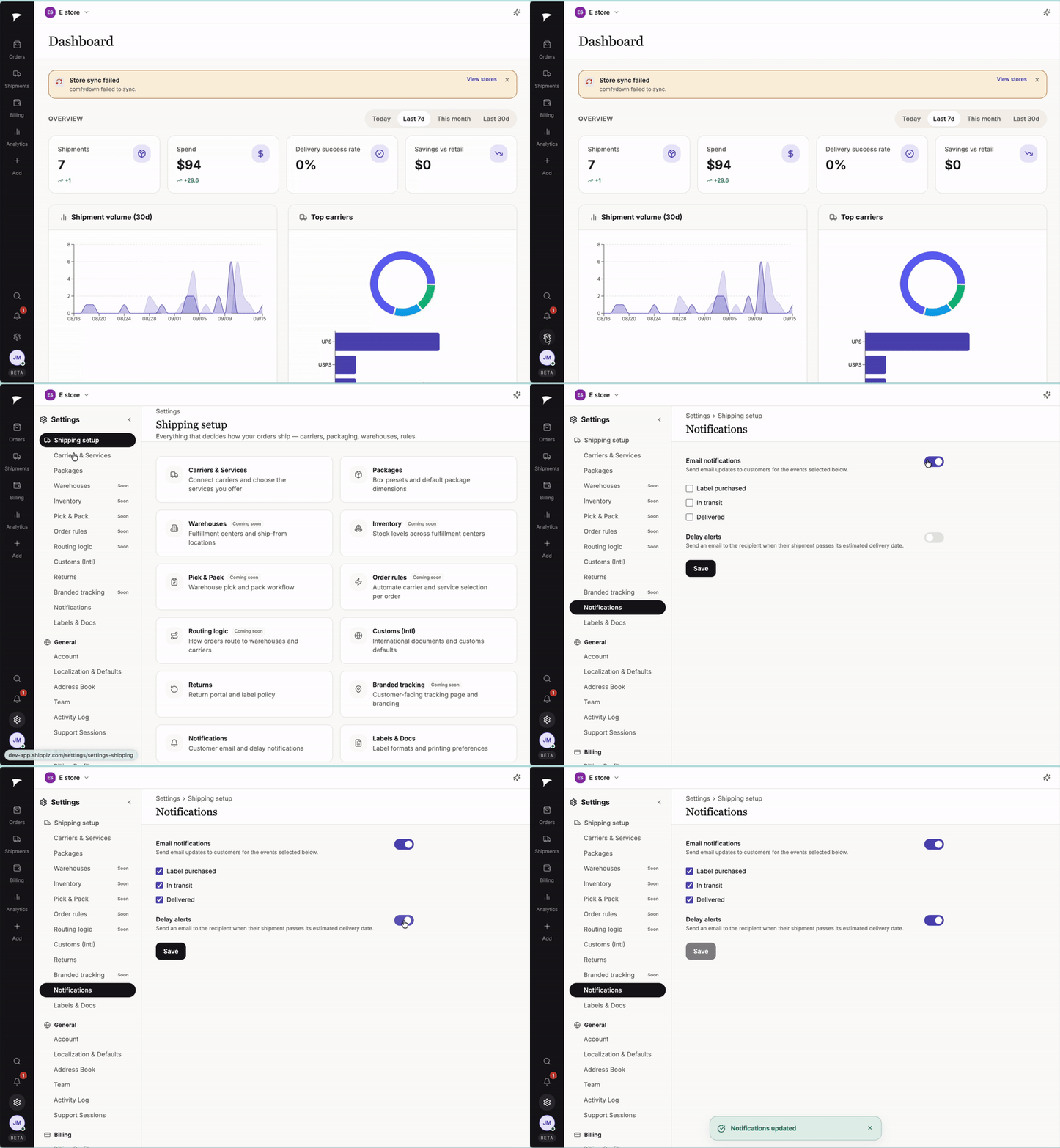
Steps
1. Open Settings, then go to Shipping setup > Notifications.
Click the gear icon at the bottom of the left sidebar to open Settings, then select Shipping setup and click Notifications.
2. Turn on Email notifications.
Use the toggle next to "Email notifications" to turn it on. This is off by default.
3. Choose which events send an email.
Check the box for each shipment event you want customers notified about:
- Label purchased — sent when a shipping label is created for the order
- In transit — sent once the carrier scans the package as moving
- Delivered — sent when the carrier marks the package as delivered
You can select any combination of the three.
4. (Optional) Turn on Delay alerts.
If you also want customers notified when a shipment passes its estimated delivery date, toggle on Delay alerts below the event list.
5. Click Save.
A "Notifications updated" confirmation appears once your changes are saved.
- Email notifications and delay alerts are turned off by default for new stores, so this setup needs to happen once per store.
- You can come back to this page anytime to add or remove event types.