.png)
Setting up your Shipping preferences
Settings
How to Set Up Your Shipping Preferences
Connect your own carrier accounts and save your box sizes once, so every future shipment is faster and cheaper.
Quick summary: Go to Settings → Shipping Setup to connect a carrier account with your own negotiated rates, and to save your standard box dimensions so you never re-enter them.
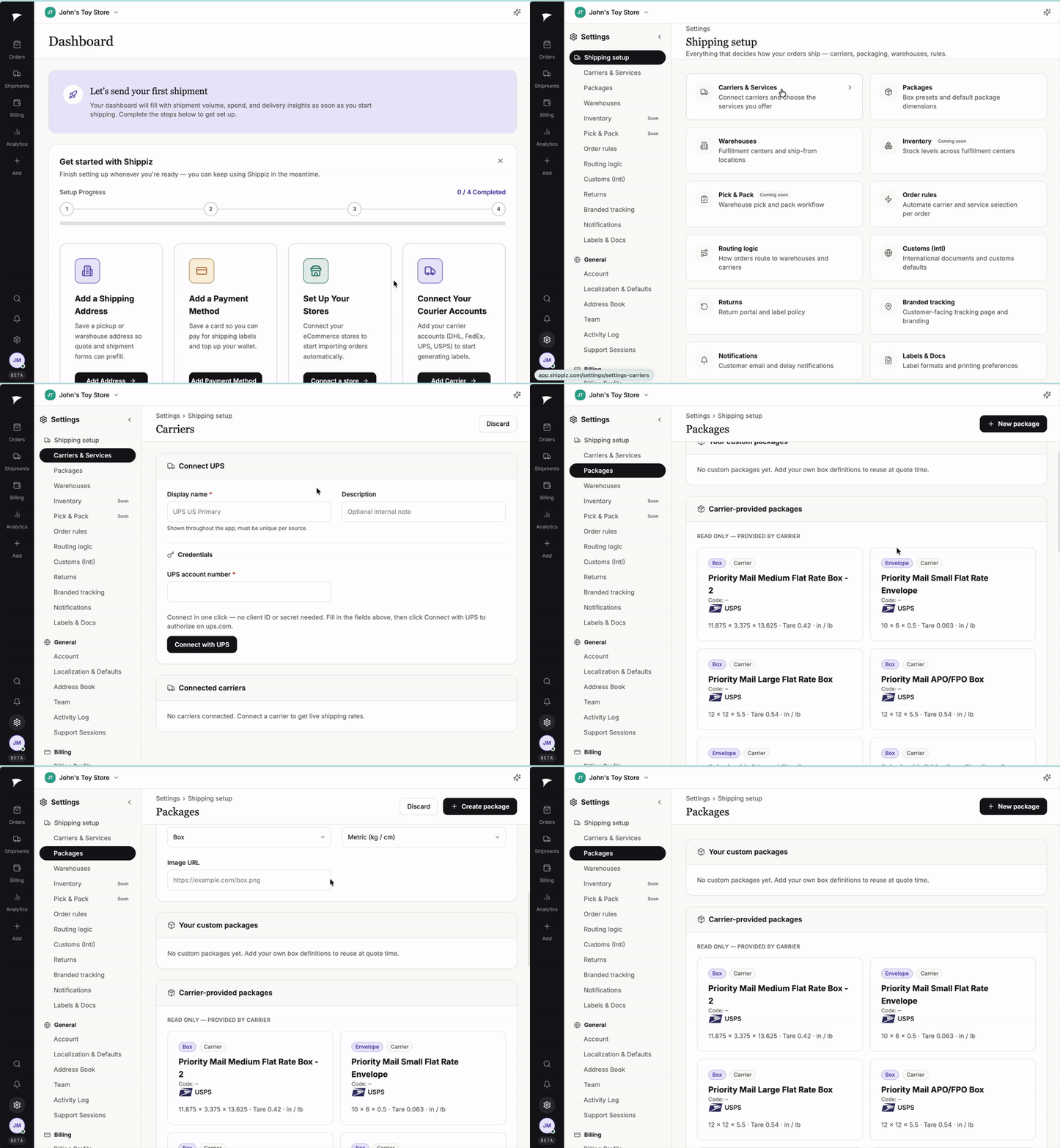
Setting up your carrier and box sizes - takes less than a minute.
Bring your own carrier account
Already have negotiated rates with UPS, FedEx, or another carrier? Connect that account and Shippiz will automatically compare your rates against ours on every shipment, and use whichever is cheaper. There's no extra cost and no lock-in - you always win.
- Go to Settings → Shipping Setup.
- Find the Carrier Accounts section and click to connect a new carrier.
- Enter your carrier account credentials/negotiated rate details as prompted.
- Save. From now on, Shippiz rate-shops your account's rates alongside all other connected carriers on every shipment automatically.
Save your custom box sizes
Ship in standard packaging? Save your box dimensions once and reuse them on every future shipment instead of re-entering measurements each time.
- Go to Settings → Shipping Setup.
- Find the Box Sizes section and click to add a new box.
- Enter the dimensions (length, width, height) and give the box a name you'll recognize, like "Small Poly Mailer" or "12x9x4 Box".
- Save. The next time you create a shipment, just select this box from the list instead of typing in measurements.
Tip: Set this up once, right after you sign up, and every shipment after that will be faster - no repeated data entry.